
Appearance
Changing settings during a meeting
This guide shows how to change the most common settings during an assisted call without interrupting the meeting — straight from a quick-settings popover in the assist window, with a link to the full settings screen when you need more.
Steps
1. Settings button in the assist window
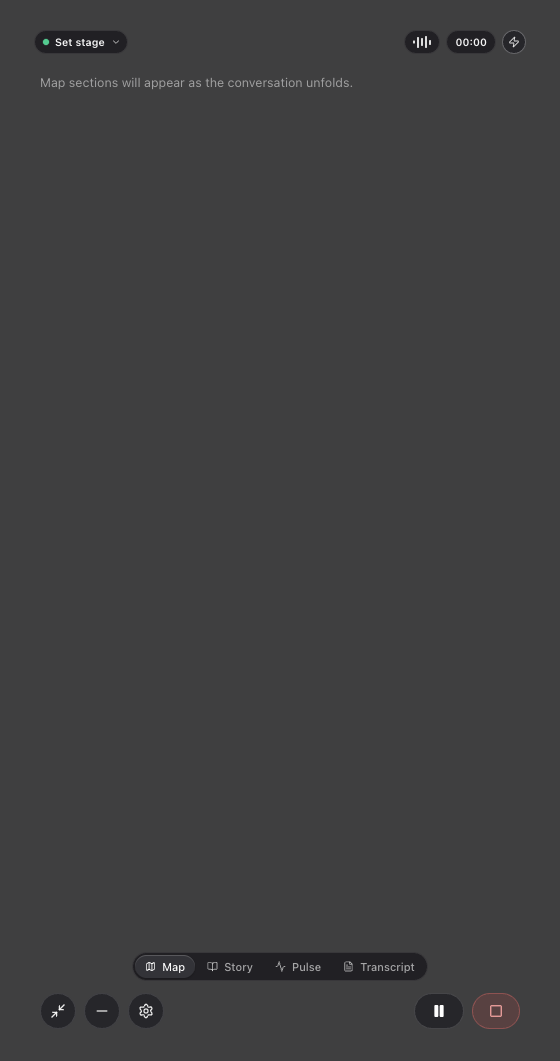
In the bottom bar of the assist window, next to the minimize button, there is a settings (gear) icon.
2. Quick settings open in a popover
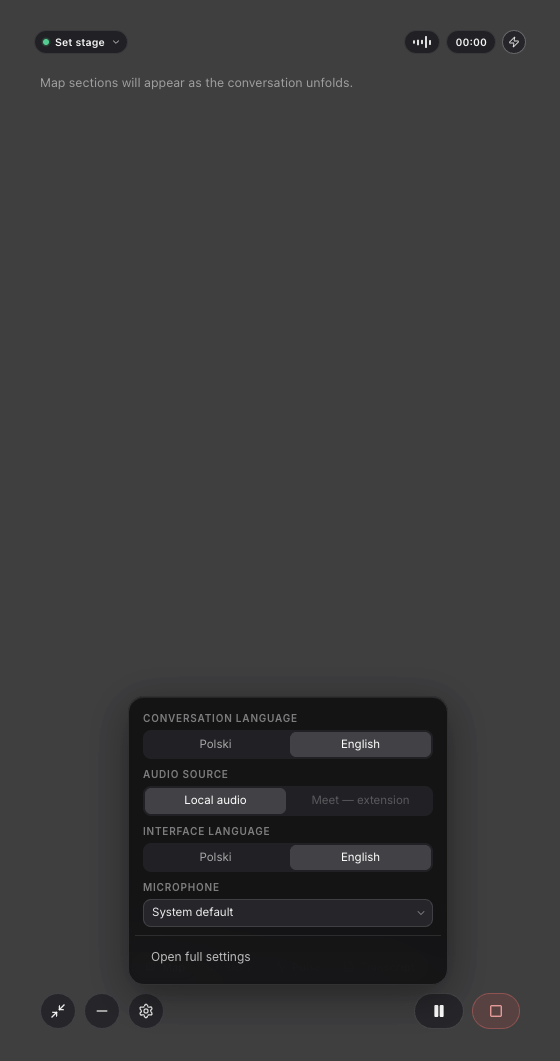
Quick settings open right inside the assist window: conversation language, interface language, audio source, and the microphone. Changes apply immediately — the meeting keeps going.
3. Full settings open in the main window
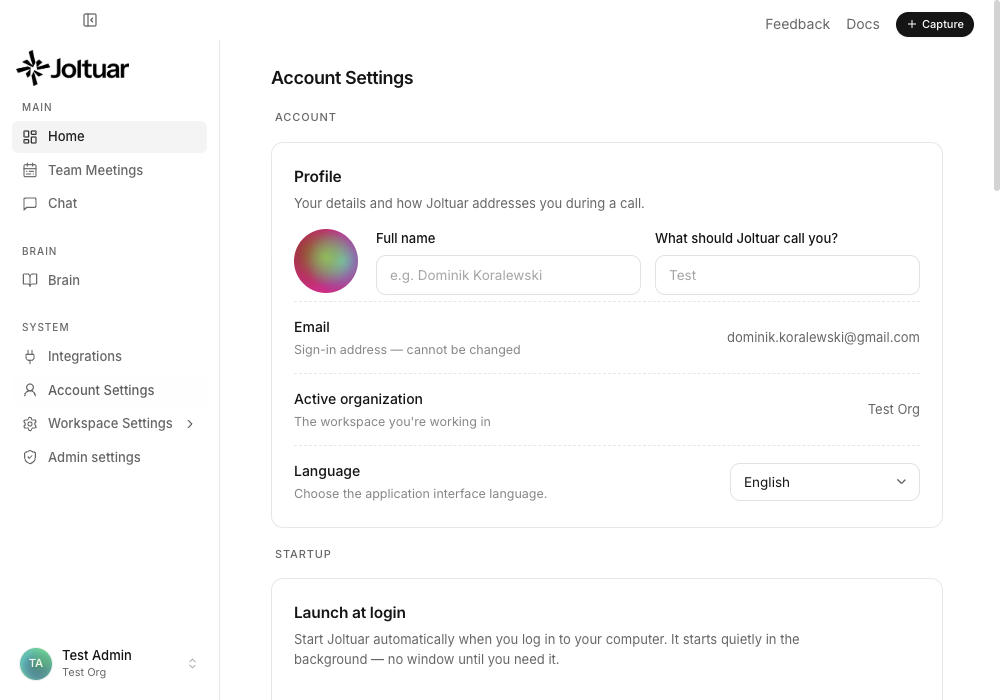
For everything else, "Open full settings" brings up the main window on the Settings screen. The assist window stays on top and keeps listening.