Appearance
Live assist in the browser (Google Meet, Zoom, Teams)
With the Joltuar Chrome extension installed, you can run the live assistant directly in your browser meeting — no desktop overlay, no window switching. The Map, Story, Pulse and Transcript panels appear on top of your meeting tab and listen as you talk.
Works with Google Meet, Zoom and Microsoft Teams in the browser. On Google Meet, the transcript also shows each participant's real name.
Installing the extension: add it from the Chrome Web Store — click Add to Chrome and confirm. It installs and auto-updates from the store.
Steps
1. Sign in on the web app
Open app.joltuar.com and sign in with your account. The extension picks up your sign-in automatically — no separate login inside the extension.
2. Open your meeting tab
Navigate to your meeting in Chrome (Google Meet, Zoom web, or Teams web). The Joltuar extension icon lights up in the toolbar once it recognises the meeting.
3. Click the Joltuar icon and start assist
Click the Joltuar icon in the Chrome toolbar. Tick the recording-consent box — confirming that everyone on the call has agreed to be recorded — then click Start assist.
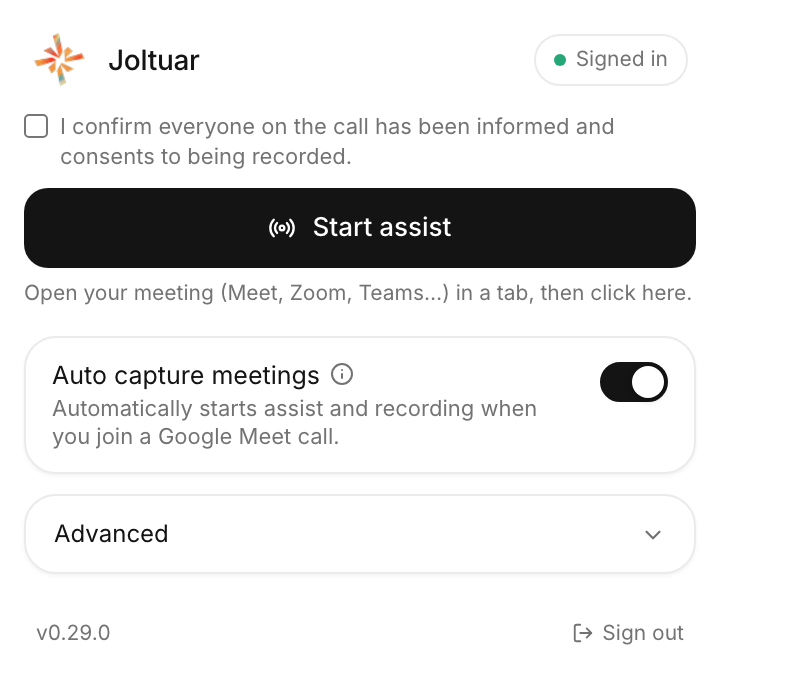
Everything else is optional: Auto capture meetings starts the assistant by itself on future calls, and Advanced holds the settings you rarely touch — microphone access, where the assist appears, transcript source, language and updates.
4. The overlay appears on your meeting
The live-assist overlay slides into your meeting tab. It works the same as the desktop assistant:
- Map — tracks the key facts and questions surfacing in the conversation.
- Story — streams talk-track recommendations matched to what the customer just said.
- Pulse — shows each moment the assistant flags, with a hint you can generate on demand (or automatically, if you have auto-hints turned on).
- Transcript — a live transcript of both sides. On Google Meet, each line shows the participant's real name.
You can also click ⚡ in the overlay header to force-capture the last ~30 seconds as a Pulse signal at any moment.
Drag the overlay's edges to resize it — the size (and position) you set is remembered for your next call.
5. Stop the assist
Click Stop in the overlay, or click the Joltuar extension icon and choose Stop assist. The session ends and the meeting is saved for later review — including the Map progress, which shows up in the recap on both web and desktop. When the call itself ends, the overlay closes on its own.
Tips
Any browser meeting tab works. Open the Joltuar icon on whichever tab has your meeting and click Start — it does not need to be Google Meet.
Auto-capture. Turn on Auto capture meetings in the extension popup and Joltuar starts assisting by itself whenever you join a supported meeting — no clicking when the call is starting.
Participant names (Google Meet only). The transcript labels each line with the speaker's real name when the call is on Google Meet. Other platforms label lines by role (Customer / You).
Auto-hints. To have talk-tracks stream the moment a Pulse signal appears — without tapping — turn on "Generate hints automatically" in Settings → Assistant or in the overlay's quick settings.
Language. The overlay follows the conversation language set in Settings. Switch it mid-call from the gear icon inside the overlay.
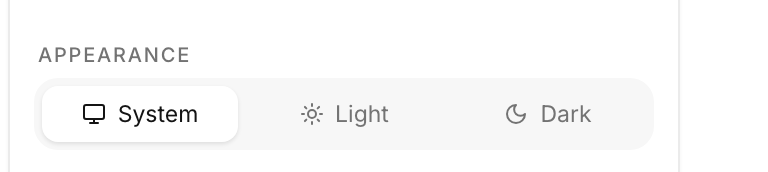
Light or dark popup. The popup follows your system theme by default. To pin it one way, open Advanced → Appearance and pick Light or Dark. The choice is remembered and applies the moment you set it. (The in-call overlay stays dark — it is designed to sit over a meeting, not to match your desktop.)
Which account am I signed in as? Hover the status pill in the popup header — the tooltip shows the e-mail address of the signed-in account.