
Appearance
Reviewing a meeting after the call
This guide shows the post-call view you land on when a meeting ends — the AI summary, the talk-time analysis, the Pulse signals the assistant surfaced, and the searchable transcript with an audio player. You can also rename the meeting and download the conversation from here.
Steps
1. The post-call view
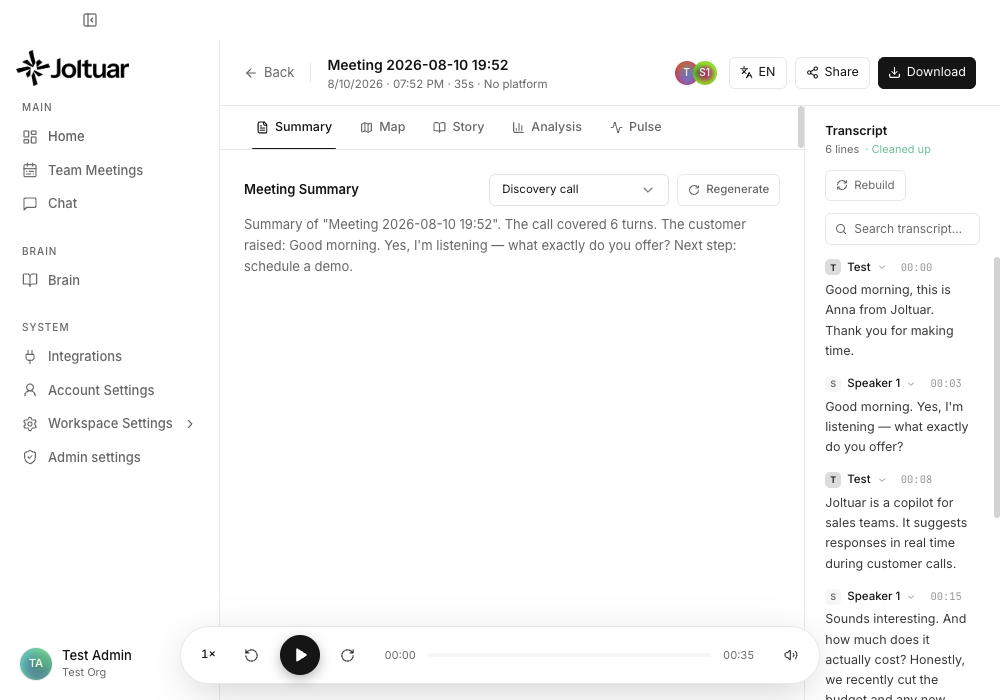
When the call ends you land on the post-call view: a header with the meeting details, content tabs, a transcript panel on the right and an audio player at the bottom.
2. The AI summary
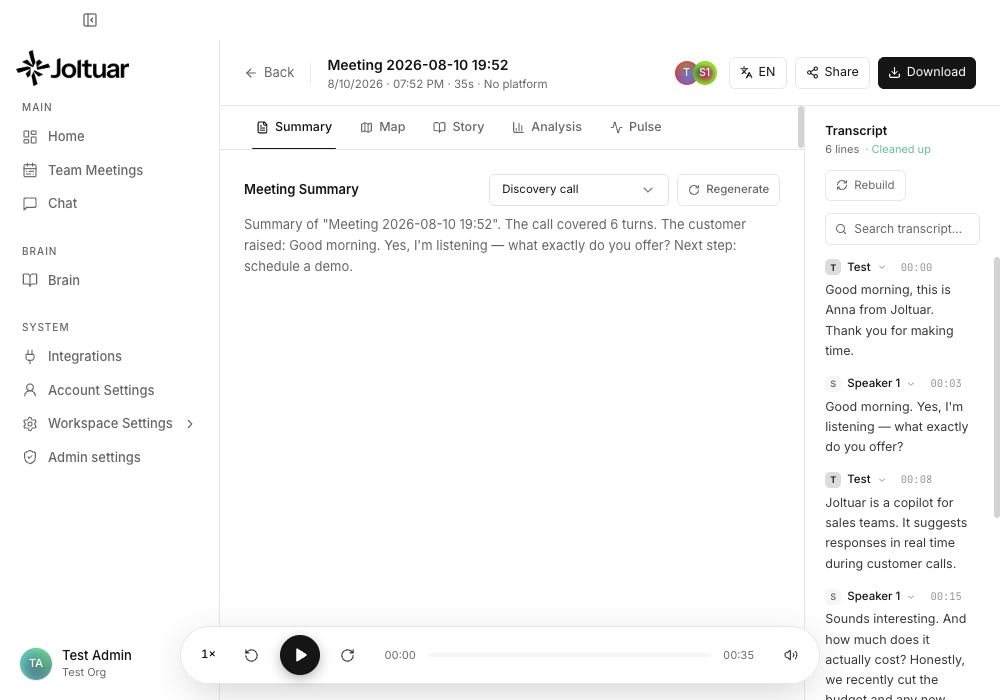
The Summary tab shows an AI-written recap of the call. It is generated the first time you open the tab and saved with the meeting; use Regenerate to refresh it.
3. Who talked how much
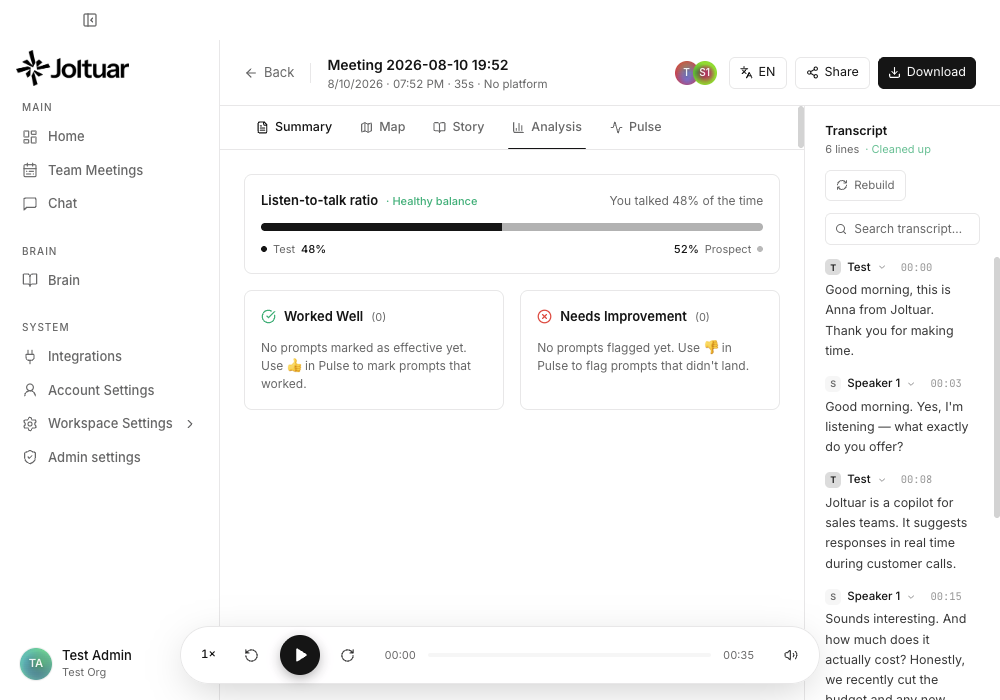
The Analysis tab breaks down the listen-to-talk ratio and lists the prompts you marked as effective or ineffective.
4. Rename the meeting
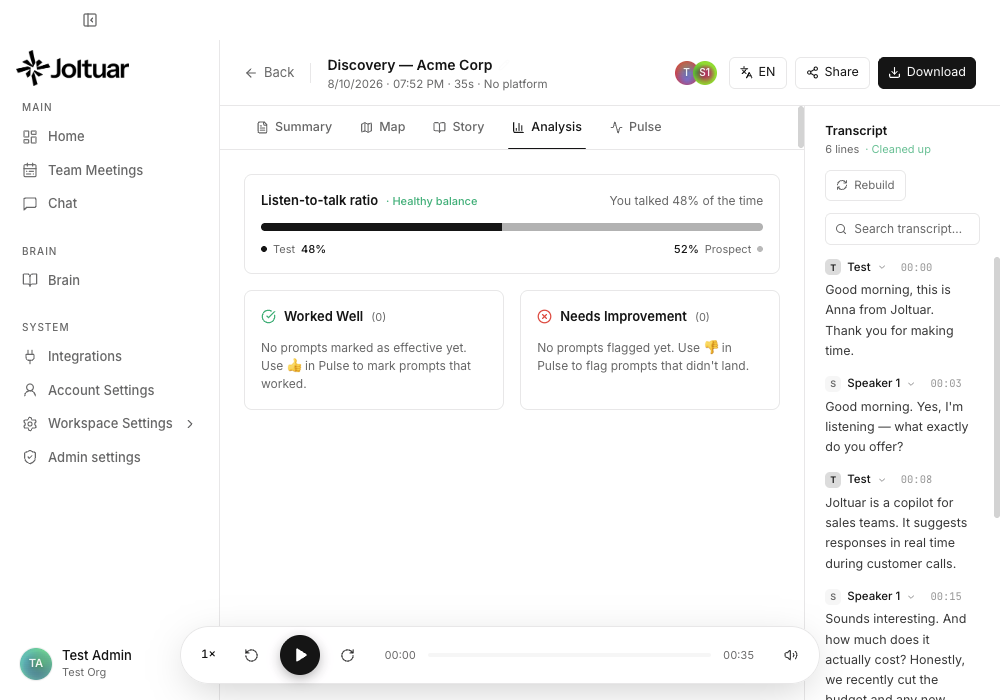
Click the meeting name in the header to rename it inline — Enter saves, Escape cancels.
5. Search the transcript
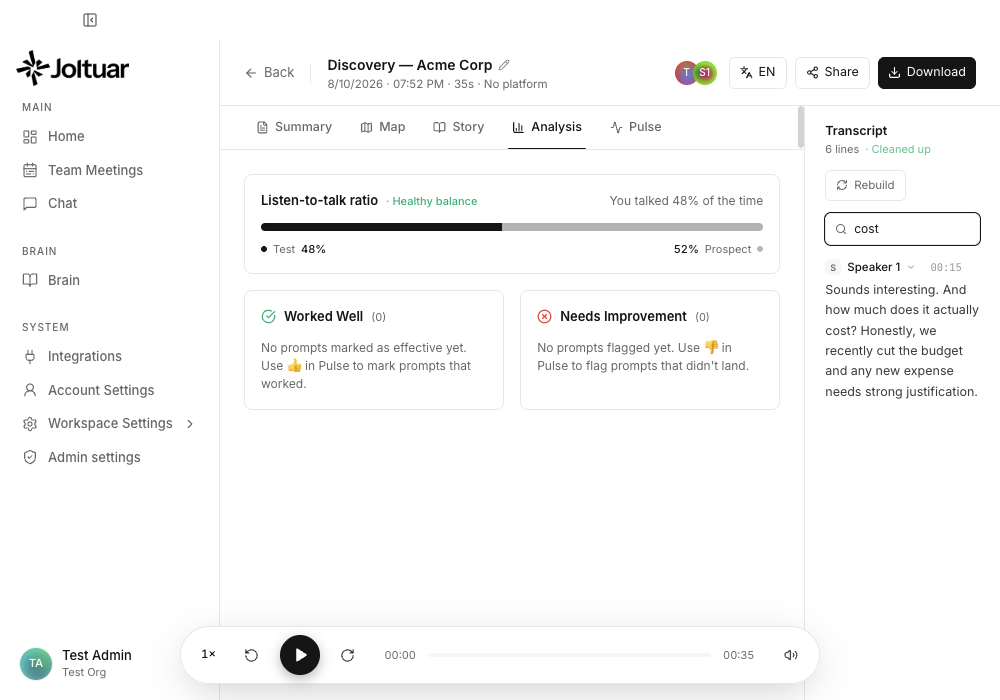
The full transcript sits in a resizable side panel you can search line by line.
6. Change the meeting language
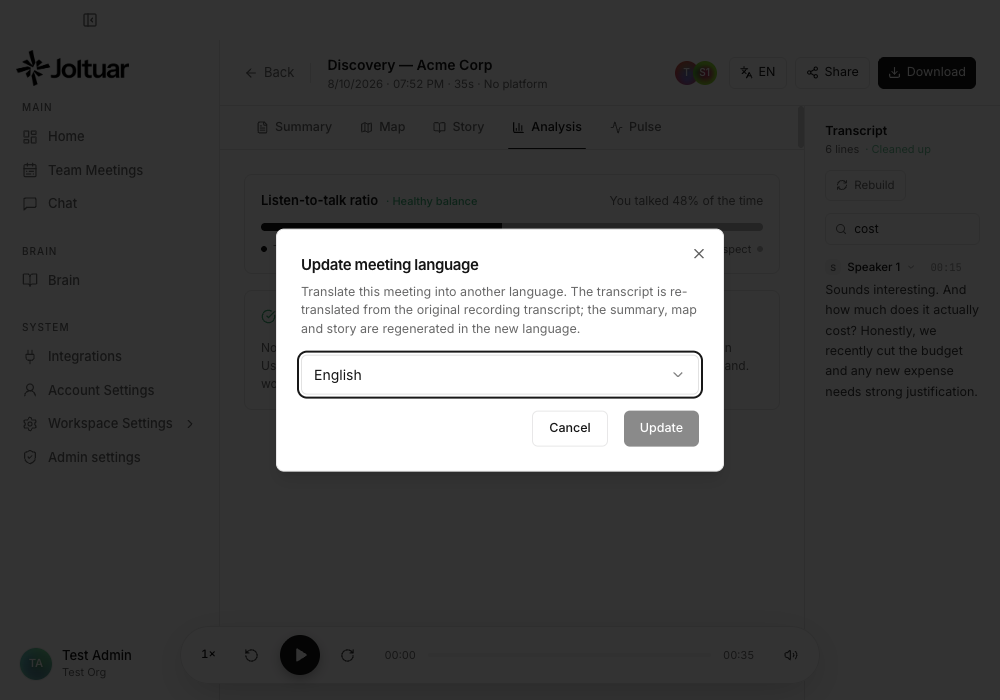
The language button next to Download shows the meeting's current content language. Click it to translate the whole meeting into another language.
7. Pick a new language
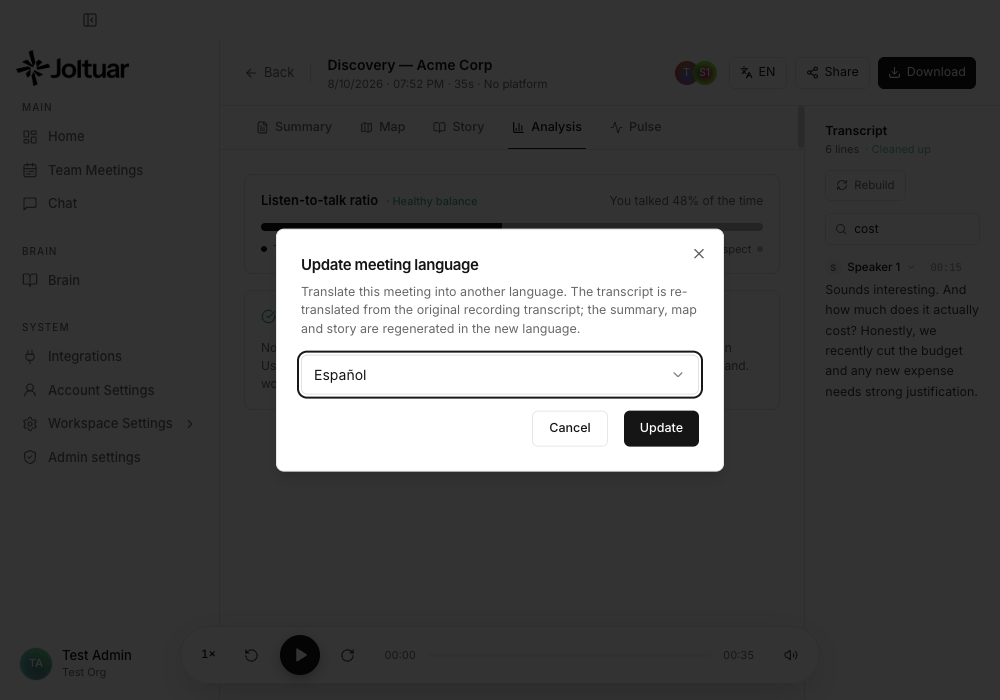
Pick from nine supported languages (including Spanish, German and Japanese). Update stays disabled until you choose a different one.
8. Meeting translated
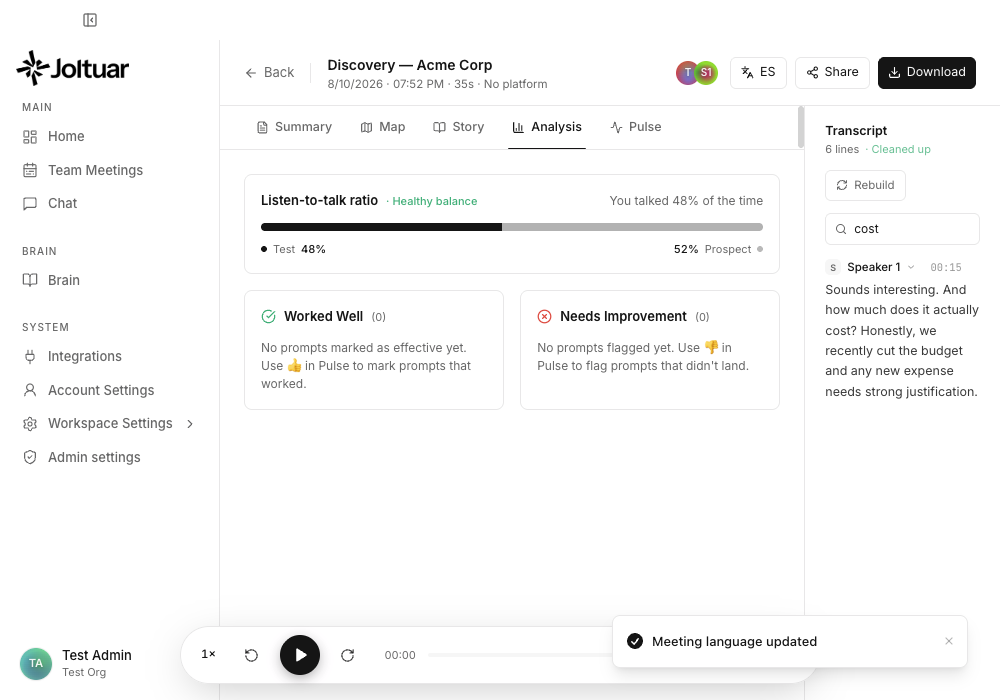
The transcript is re-translated from the original recording transcript (no audio re-transcription), the stored Map and Story text is translated in place, and the summary is regenerated in the new language. The button now shows the new language code.