
Appearance
Custom meeting summary templates
This guide shows how to shape the AI post-call summary: create and manage reusable summary templates in Workspace Settings, mark one as the default, and pick a template when regenerating a summary after a call.
Steps
1. Your summary templates
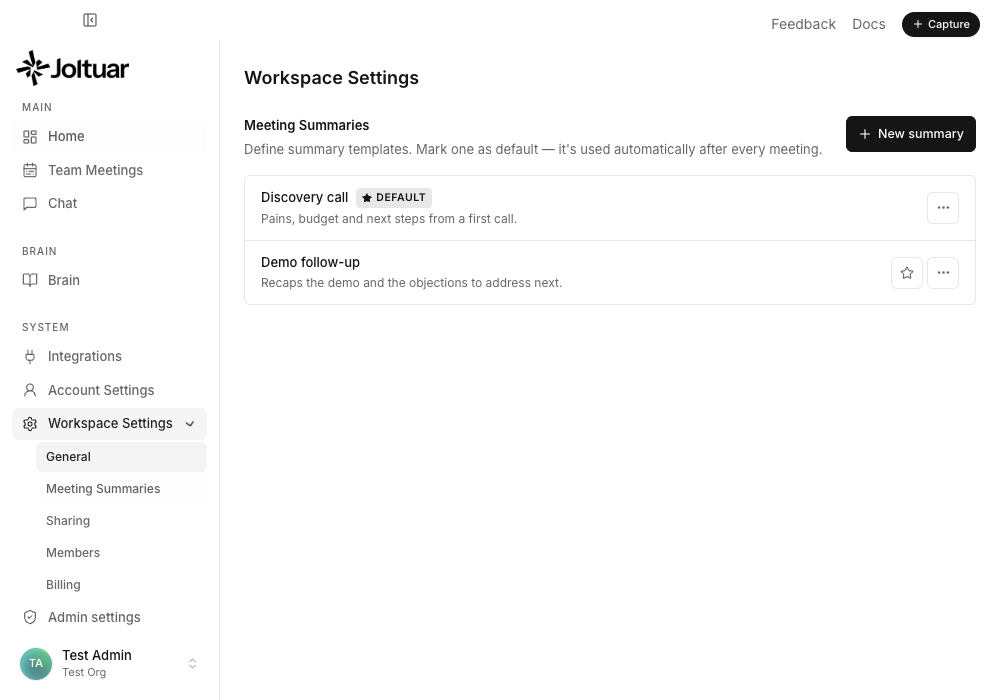
The Meeting Summaries tab lists your summary templates. The one tagged Default is applied automatically to every call.
2. Add a summary template
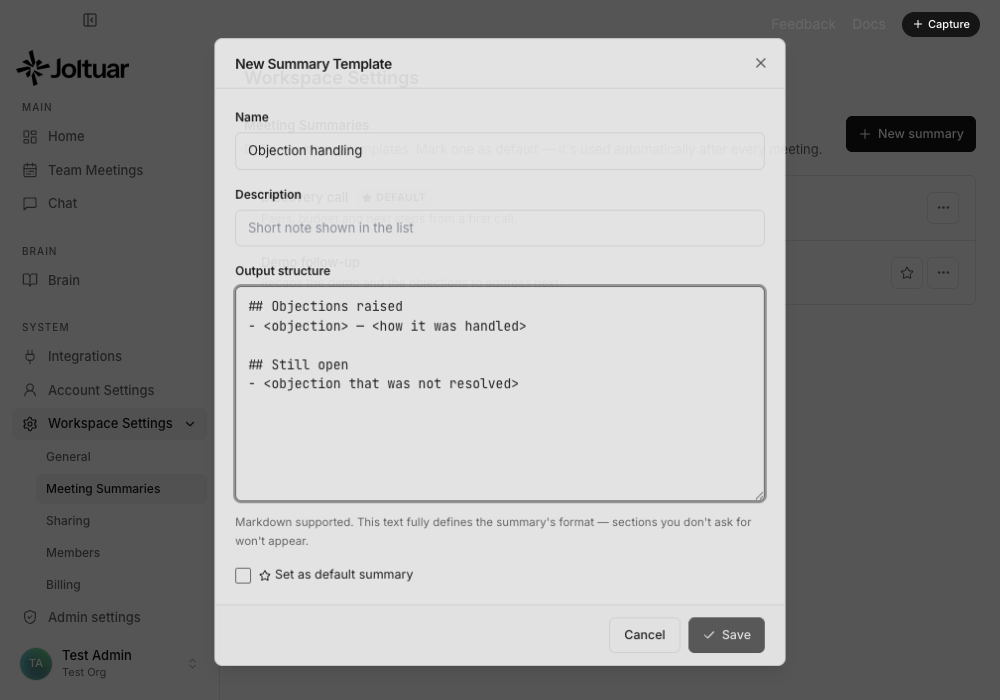
Click New summary to open the editor. The Output structure field starts from the built-in default so you have a working example to edit. This text fully defines the format — Markdown headings and lists included, and sections you leave out will not appear in the summary.
3. The template is saved
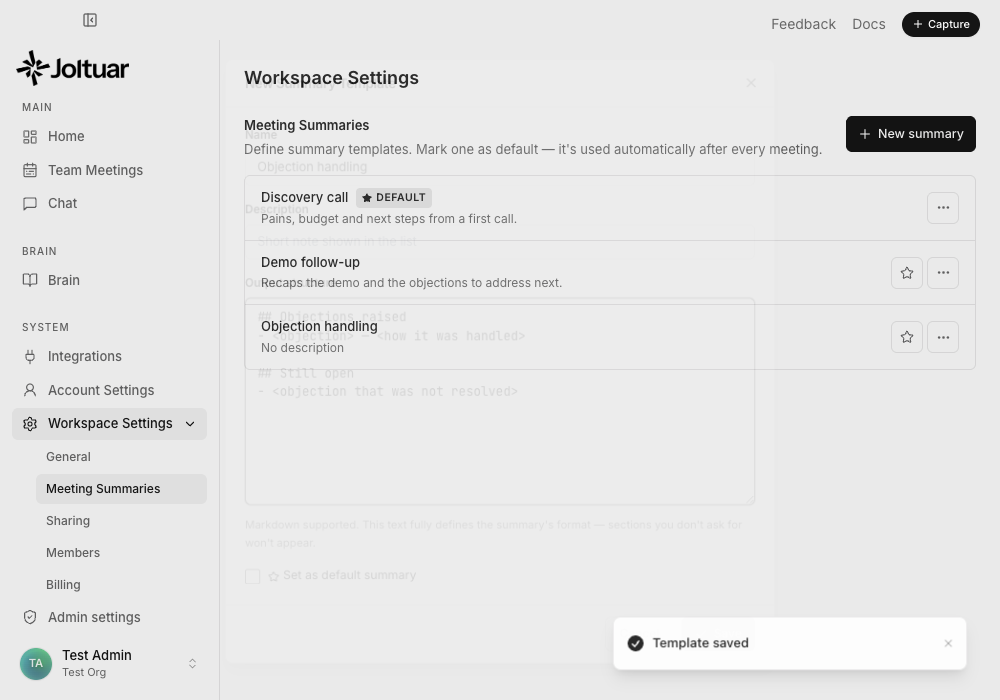
Save it, and the template appears in the list ready to use.
4. Choose the default template
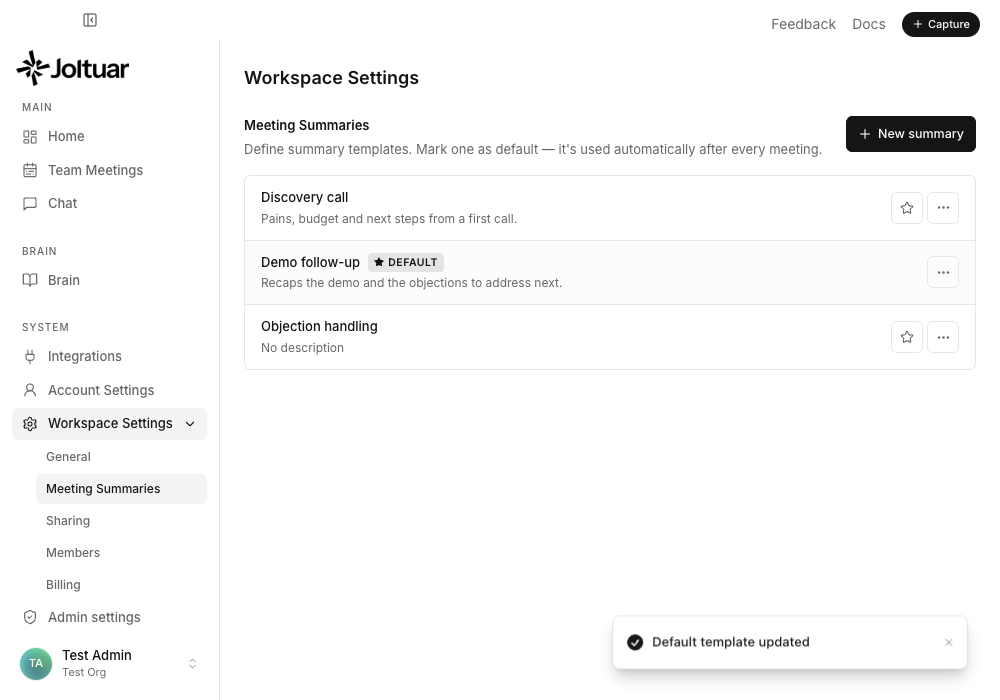
Use the star to switch which template is the default — only one template is the default at a time.
5. Pick a template after the call
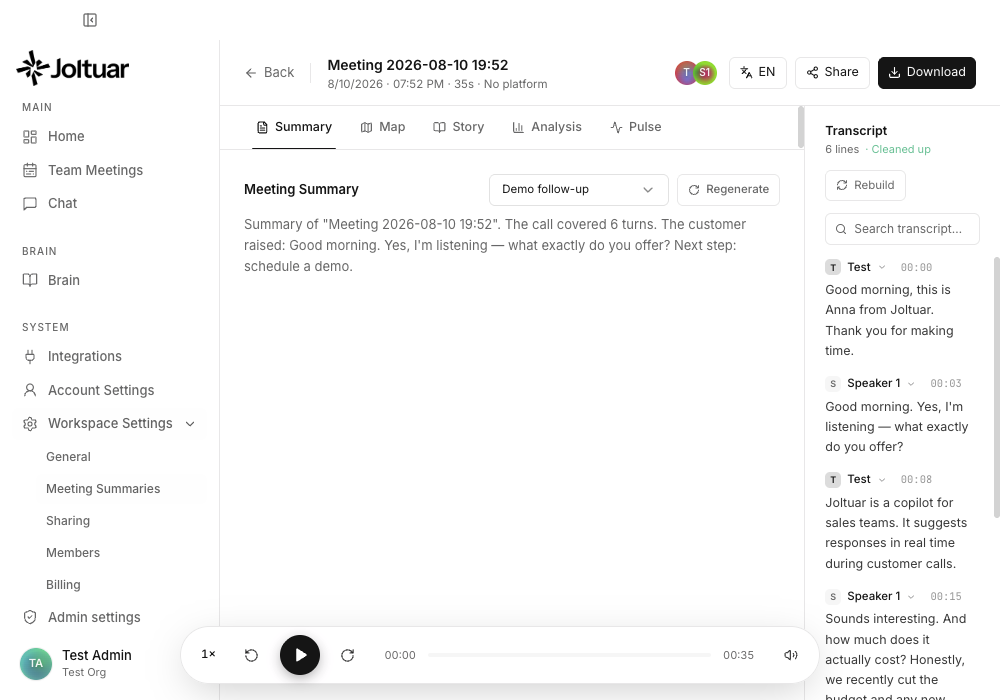
On a finished call the Summary tab shows a template picker next to Regenerate, preset to your default template.
6. Regenerate with a chosen template
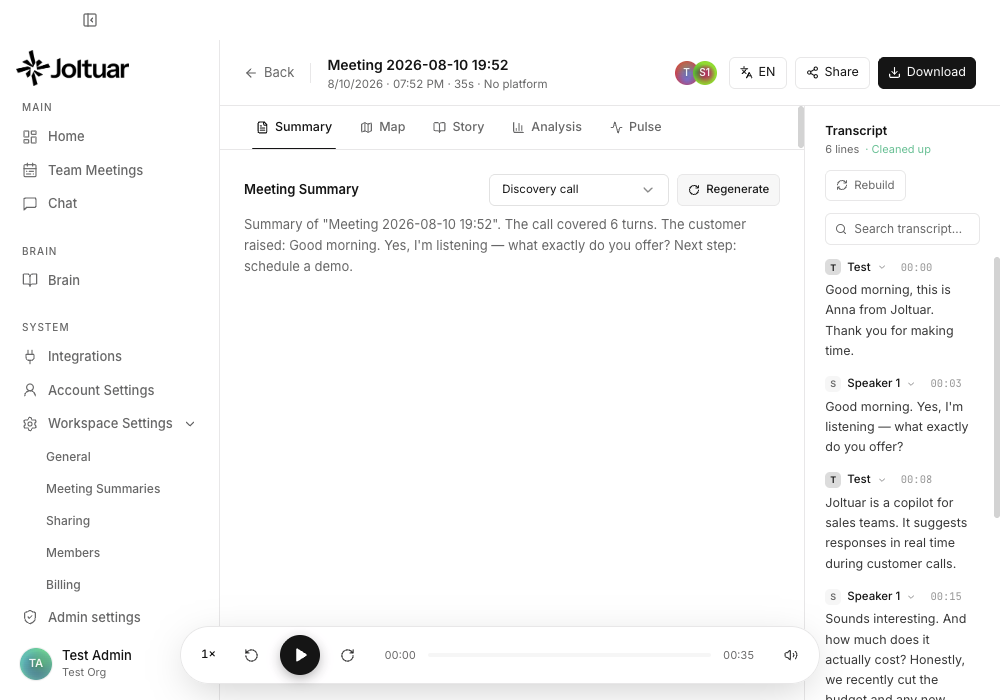
Pick any template and click Regenerate to rewrite the summary in that style — handy when a call needs a different angle than the default.