
Appearance
Adding the assistant to a live meeting
This guide shows how to point the assistant at a meeting that is already running — open Capture in the top-right corner, paste the meeting link, pick the language, and start capturing.
Steps
1. Open the Capture menu
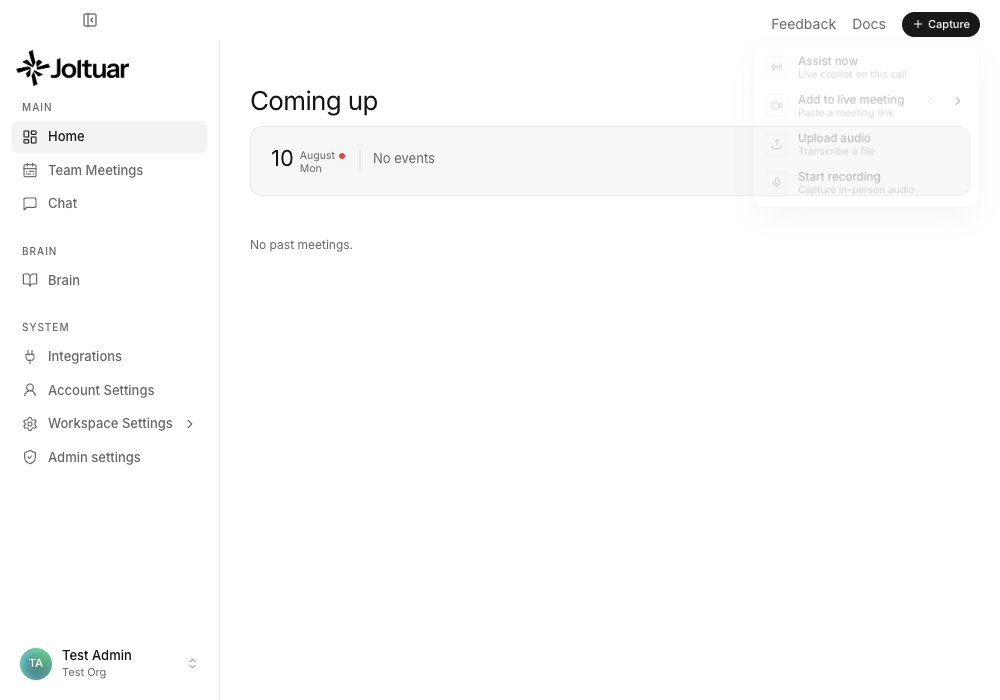
The "+ Capture" pill in the top-right corner gathers every way to start: assist this call, add to a live meeting, upload audio, or record.
2. Paste the meeting link
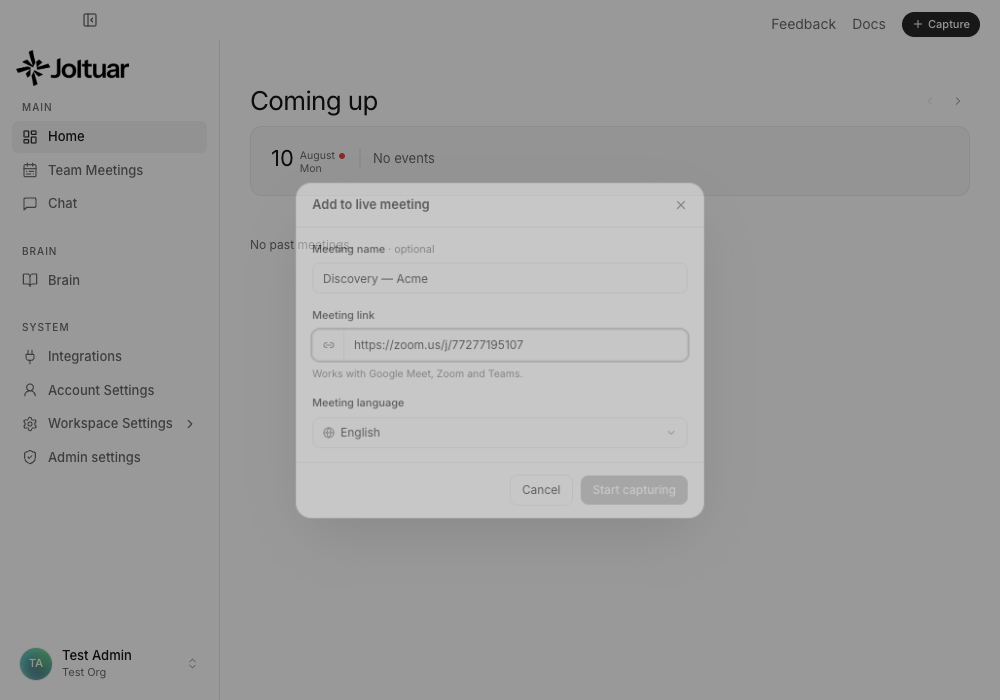
Name is optional; the meeting link is what matters. Google Meet, Zoom and Teams links all work.
3. Pick the meeting language
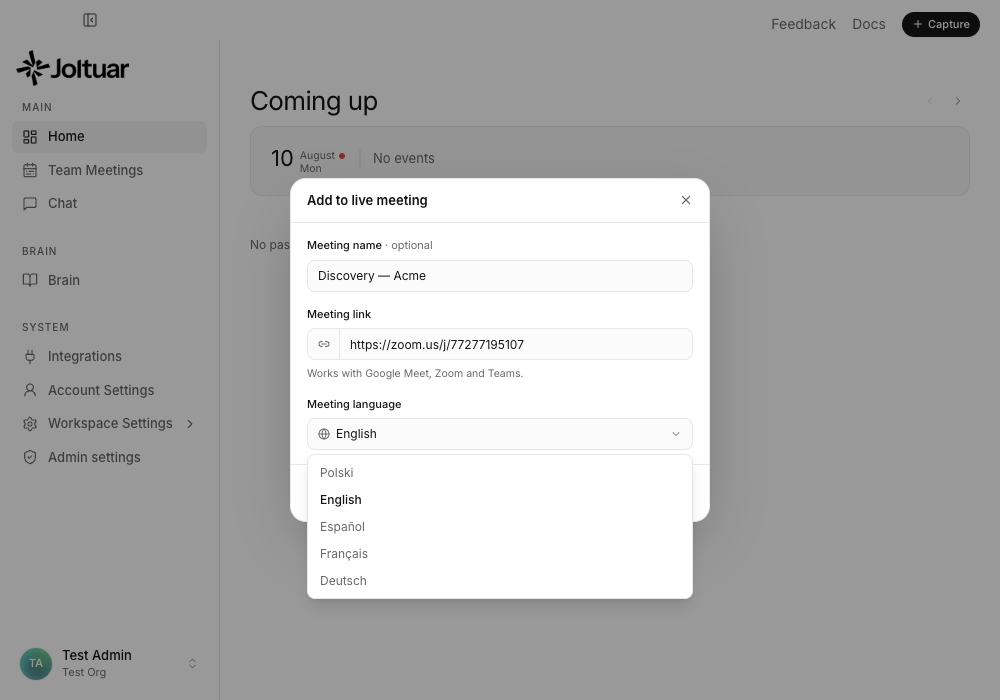
Pick the language spoken on the call — it drives both transcription and the hints you get.
4. Start capturing
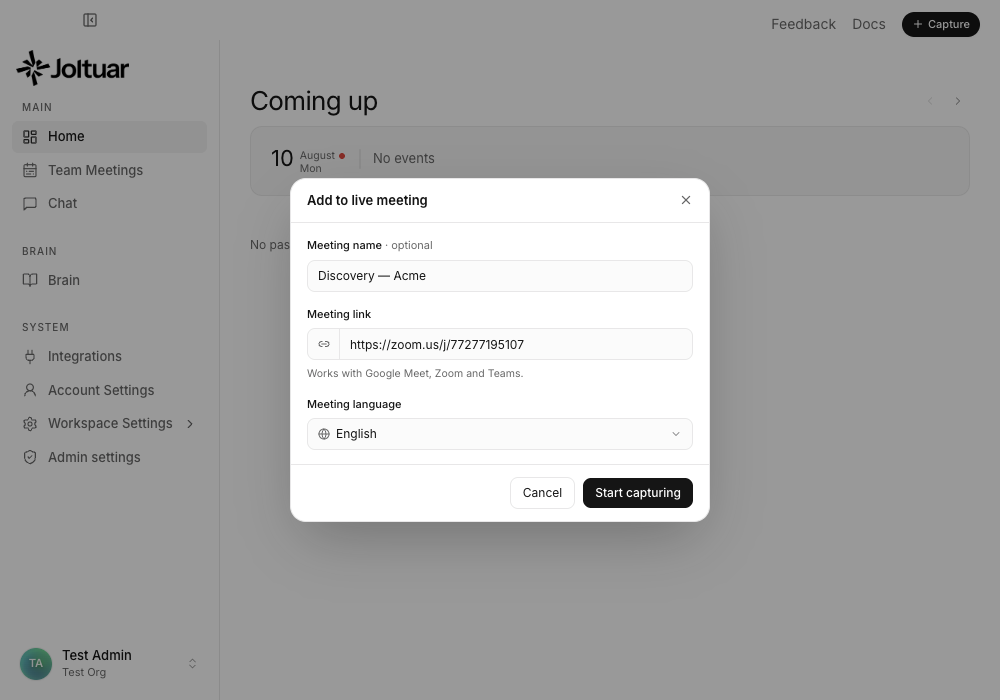
"Start capturing" stays disabled until a link is pasted. Once it lights up, the meeting is added and the Joltuar bot can join the call.