
Appearance
Working with Pulse signals
The Pulse tab is a live feed of key customer moments — pricing questions, objections, or feature requests — that the assistant detects during the call. This guide shows how to read Pulse signals, expand them for a suggestion, and capture a moment on demand when the assistant missed it.
Steps
1. The assistant listens to the call

When a session starts, the assist window opens and immediately begins listening to both sides of the call.
2. A signal appears from the customer
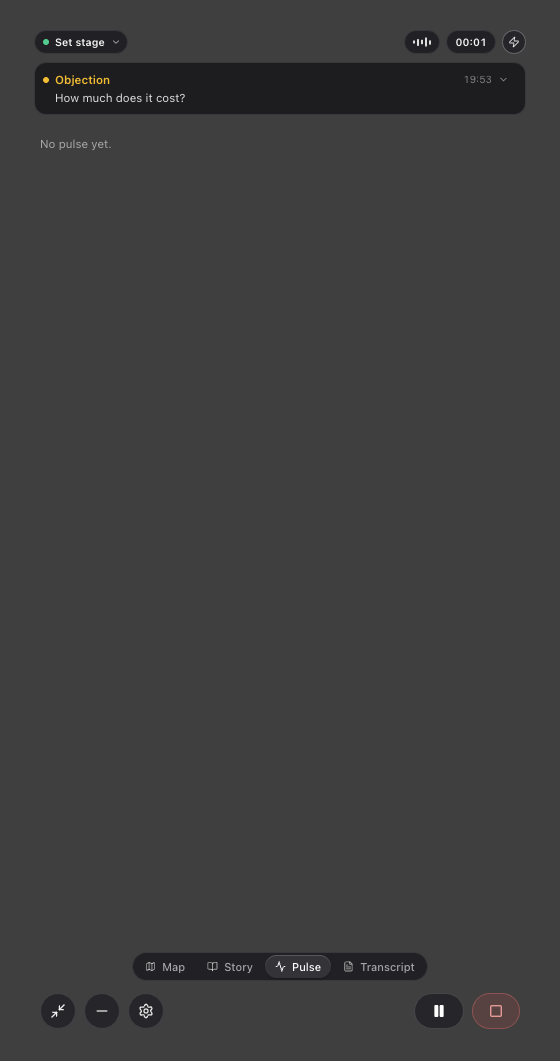
As the customer speaks, the Pulse feed lights up with signals — short labels that name the type of moment (e.g. "Pricing", "Objection"). Each signal summarises the exact words that triggered it.
3. Expand a signal for a talk-track suggestion
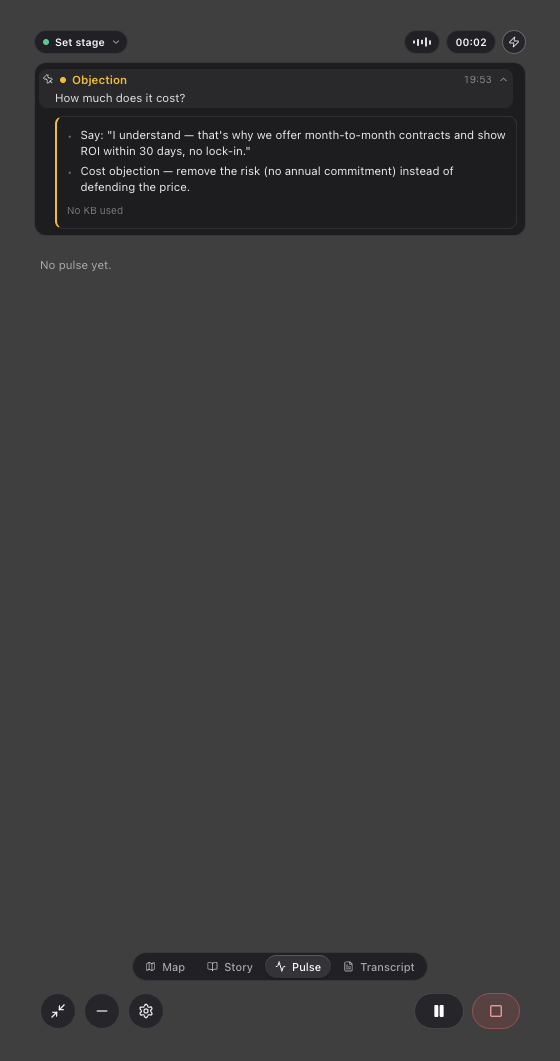
Tapping a signal expands it and the assistant streams a talk-track suggestion — a concise response you can use as-is or adapt. The suggestion is broken into bullet points, one per sentence, so it is easy to scan at a glance mid-call. The expanded card stays pinned at the top while you read it.
4. Newer signals queue up below the pinned card
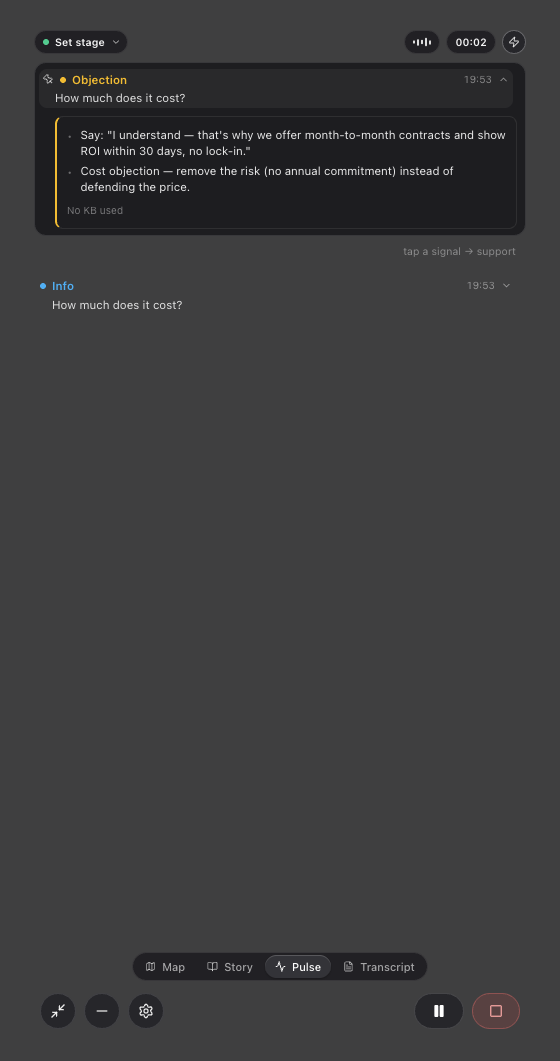
While you are reading the expanded card, new signals continue to arrive. The card you opened stays pinned at the top so you can finish reading — the newest incoming signal appears just below it, collapsed and ready to tap.
5. Capture the last customer moment on demand
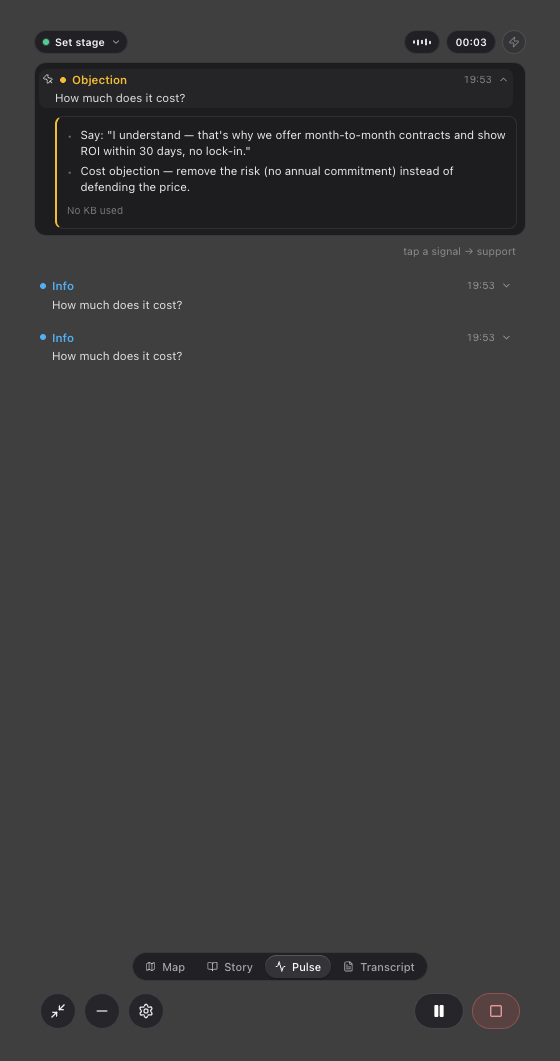
The ⚡ capture button (top-right of the assist window) lets you demand a signal right now — the assistant replays the customer's most recent words and generates a fresh suggestion even if no automatic signal fired. Useful when you felt a key moment was missed.