
Appearance
Find, rename and delete past chats
Every conversation with the Assistant is saved automatically as soon as the answer finishes, and follows you across devices. This guide shows where to find past chats, how to reopen one, and how to tidy the list up.
Steps
1. Have a conversation worth keeping
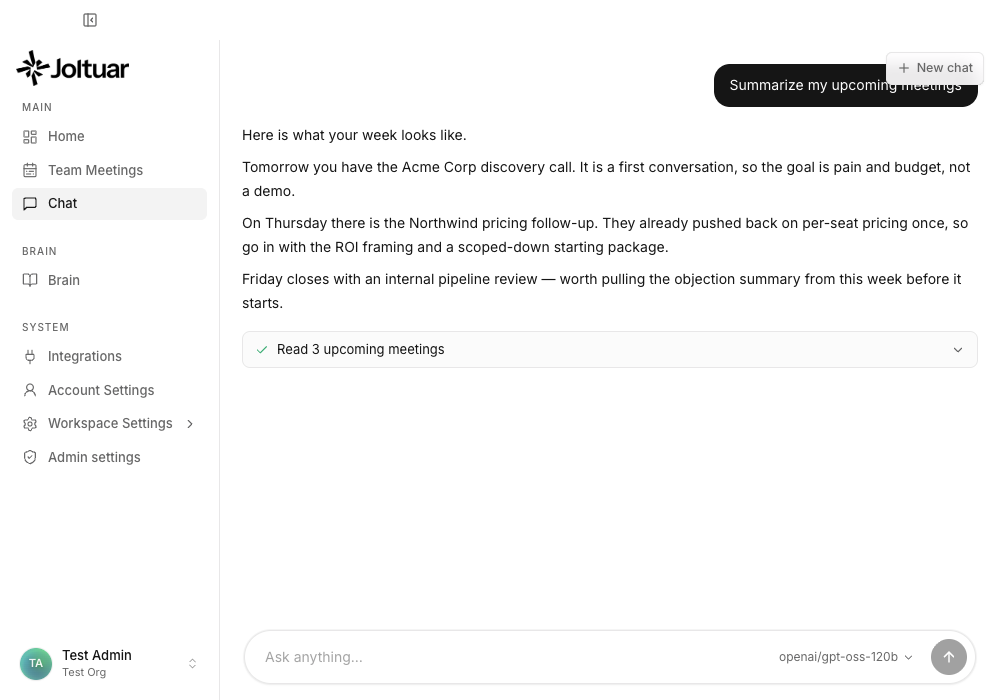
Ask the Assistant something. The conversation is saved on its own — there is no "save" button to remember.
2. Open the recents under Chat
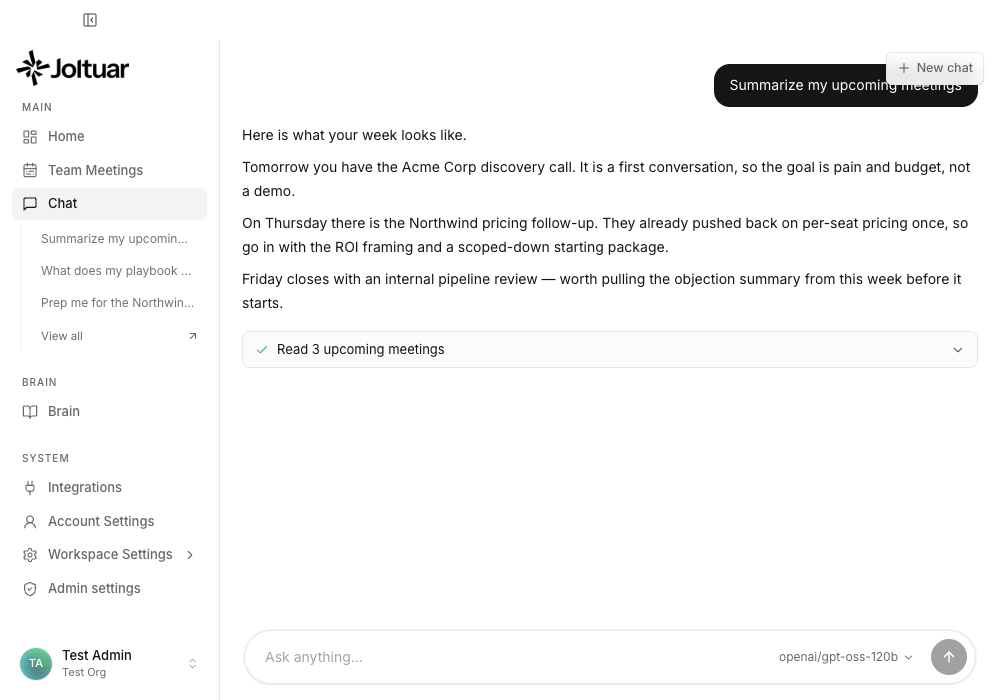
Hovering the Chat entry in the sidebar reveals a chevron that opens your recent conversations. The newest one is always on top.
3. See every chat on the Chats screen
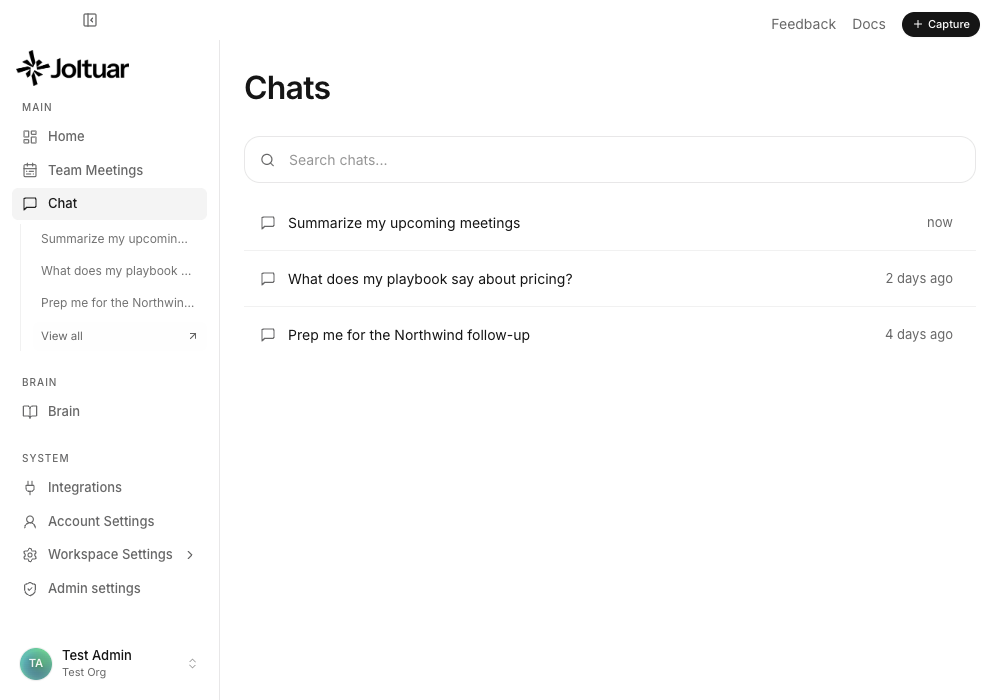
"View all" opens the full Chats screen — every saved conversation with a search box across the titles.
4. Reopen an older conversation
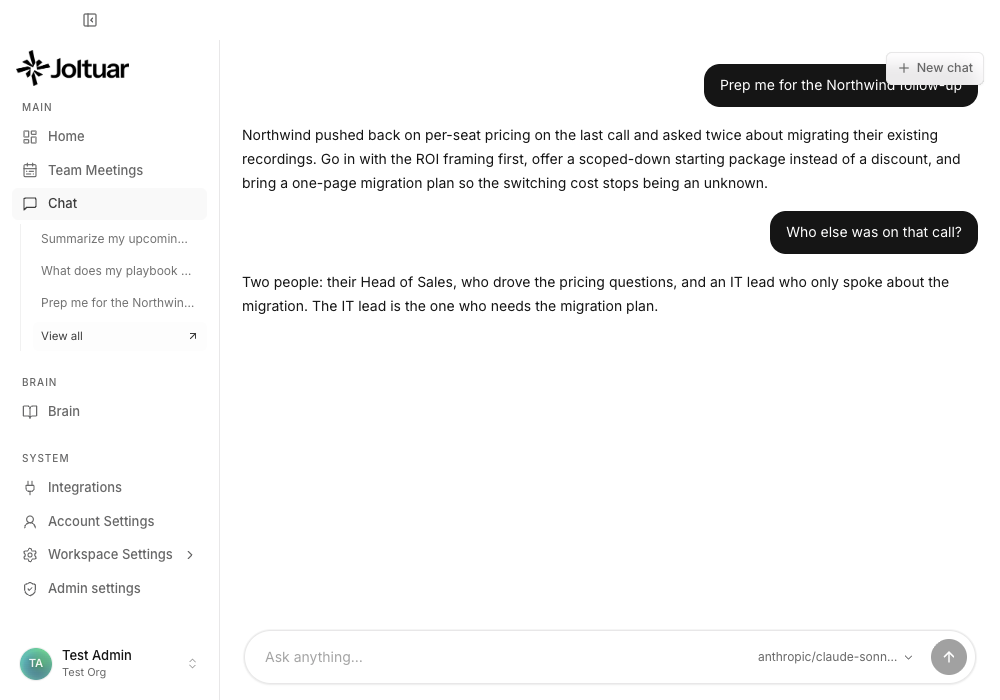
Clicking a chat reopens the whole thread in the Assistant, exactly where you left it. You can keep asking follow-up questions in it.
5. Rename a chat
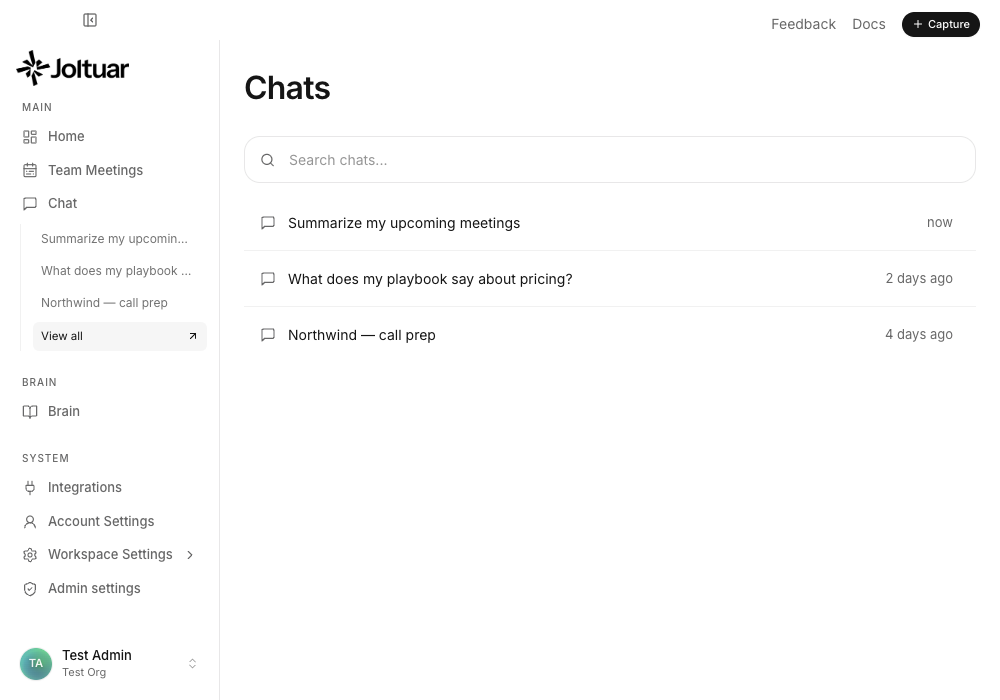
Titles are generated from your first question. The row menu lets you rename a chat to something you will recognise later.
6. Delete a chat you no longer need
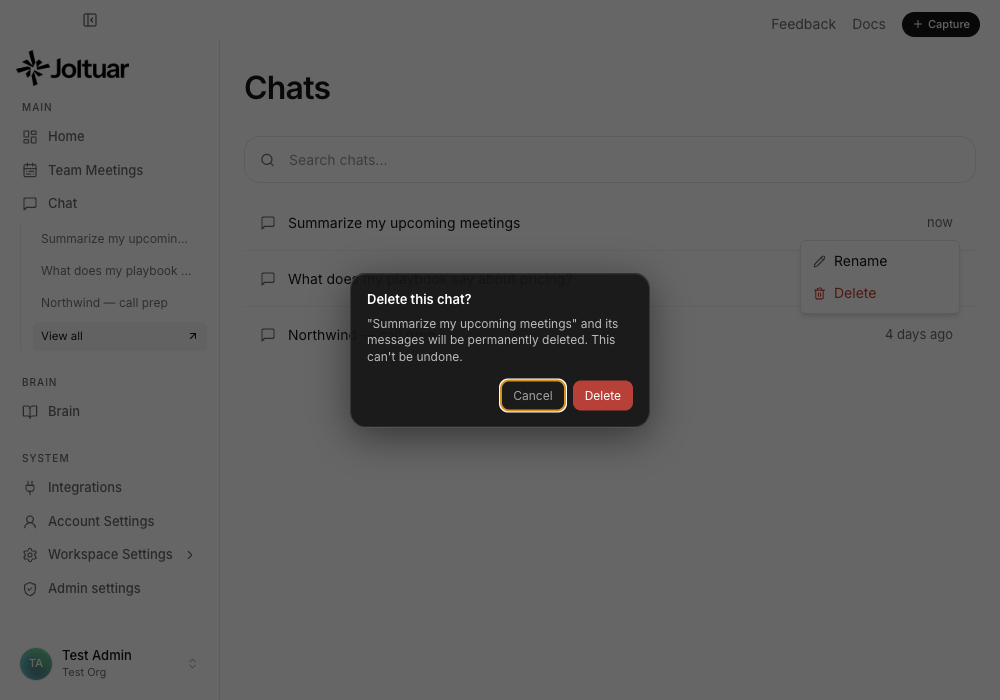
Deleting asks first — a chat and its messages are removed permanently, with no undo.
7. Confirm the deletion
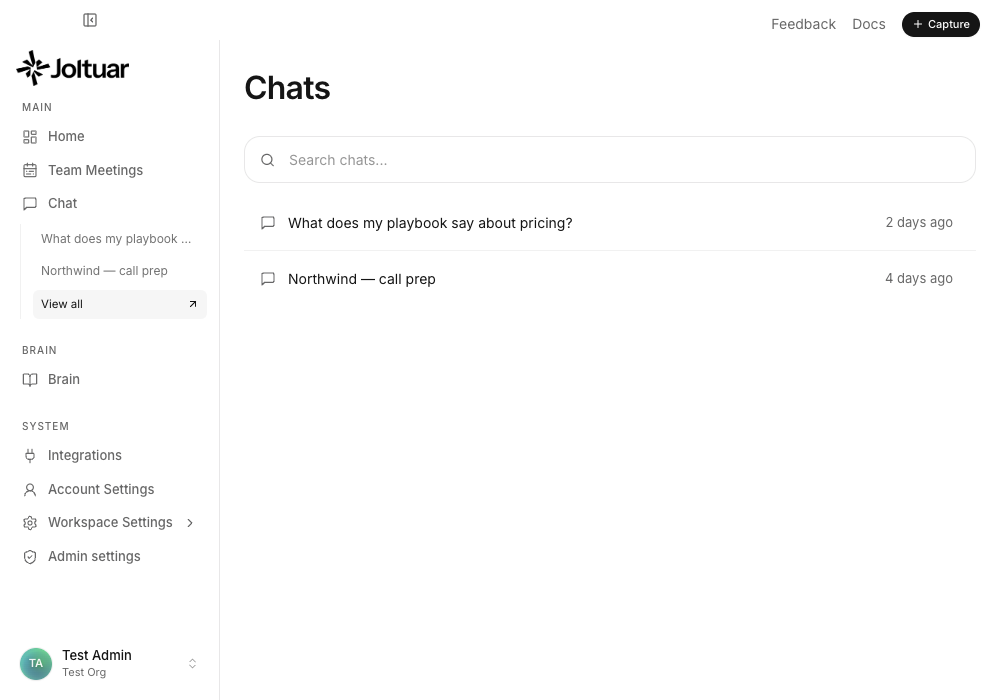
The chat disappears from the list — and from the sidebar recents — immediately.